Export at a sane bitrate.
A 64 kbps MP3 has already thrown away most of what the denoiser would work with. If the recorder or the editor can give you 192 kbps or higher, take it. WAV costs you disk space and nothing else.
You already have the recording. That is the situation this page is written for. Somewhere on your machine sits a voice memo, an interview, a lecture capture, or a field take, and under the voice there is something you did not ask for. A hum. A hiss. A laptop fan that was six inches from the microphone. Wind. A room with bare walls that turned every sentence into a small echo.
NoiseClear applies background noise removal to that file in the cloud and hands back the same recording with less of that layer. There is nothing to install and nothing to configure. What follows is what the process removes, what it does not remove, and what the free tier includes, so you can tell in advance whether the file you have is worth running at all.
Three steps.
Upload the file on the home page. Audio goes in as MP3, WAV, or M4A. Video works too, and that case is covered on the remove background noise from video free page.
Wait. A short file usually finishes in under a minute. A long one takes a few minutes.
Listen, then download.
The free tier adds no watermark, allows files up to 10 minutes long, and gives you ten minutes of audio a month, counted against your account rather than your browser. The 10-minute ceiling is the part people miss, so check the runtime before you upload.
Files and download links are deleted 60 minutes after upload, so pull your copy out of the browser while the link is live.
Denoising depends on the noise staying put. When it is steady, the model can learn its shape and subtract it. When it jumps around, you are asking for more than the method delivers, and the result starts to sound like it went through a filter.
What usually comes out cleanly:
Street noise and crowd noise are case by case. A steady bed of traffic or restaurant chatter can be pulled down several notches. A single motorcycle passing in the middle of a sentence is a peak, not a bed, and it stays.
This list matters more than the one above. It is the reason someone uploads a file, listens to the result, and decides that the tool does not work.
The short version: if the noise was added on top of the signal, there is a good chance it comes off. If the signal itself was damaged, it stays damaged.
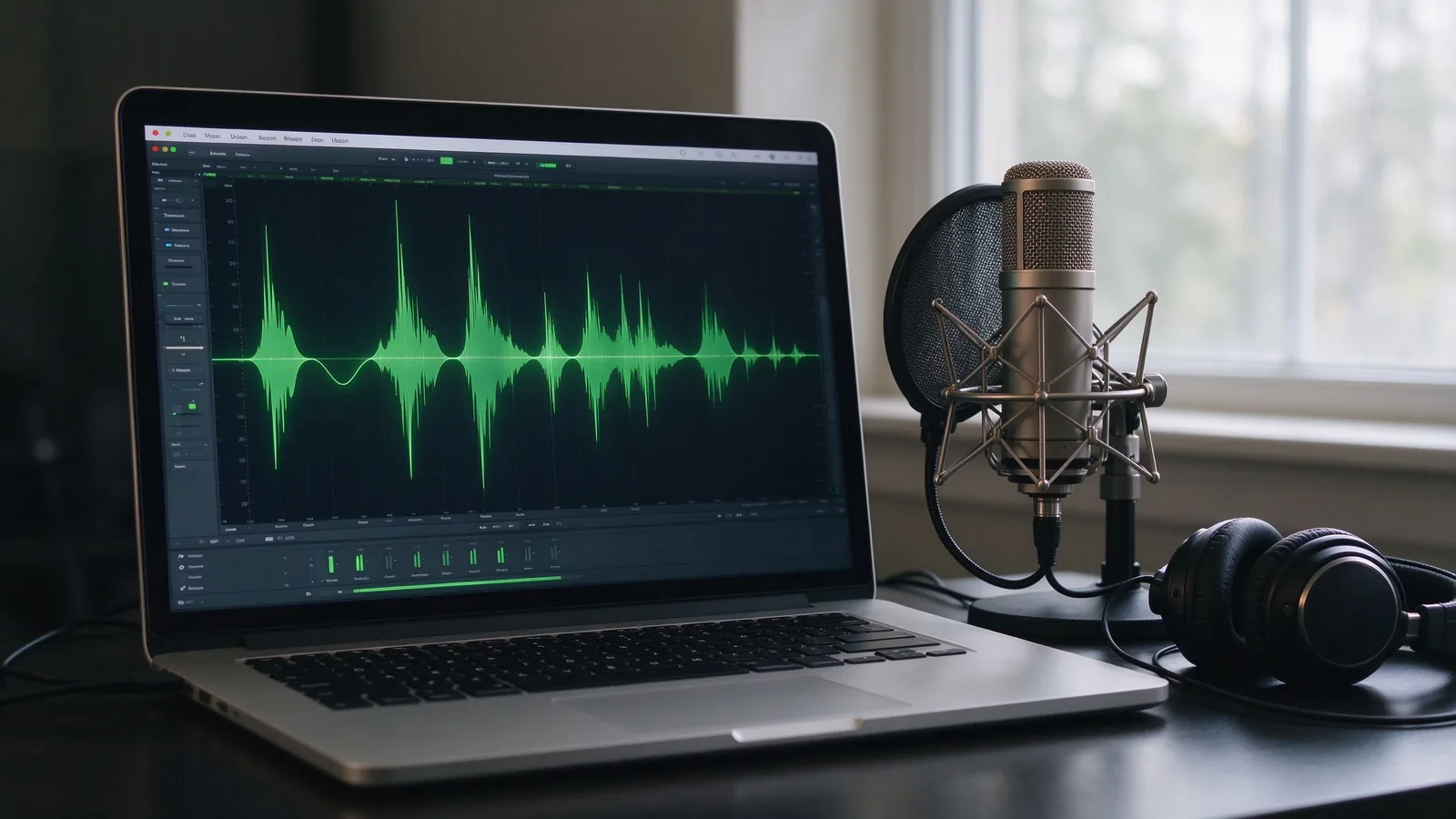
Denoising changes the noise, not the timeline. A six-minute recording comes back six minutes long, in the format and sample rate you sent. Nothing is trimmed, stretched or re-cropped, so a file that has to line up with picture still lines up after the run.
File size is set by the container and bitrate you chose, not by the cleanup. A WAV at 44.1 kHz holds the same number of bytes per second before and after, and a constant-bitrate MP3 pads to the same frame count either way. The recording sounds different and weighs about the same.
How far the noise drops depends on the noise. Steady hum, fan and air-conditioning tones sit in their own narrow band and come off cleanly. Irregular noise, a crowd or a busy street, is spread across the whole spectrum and can be reduced but not removed. A damaged signal is a different problem again: if the input is already clipped or distorted, the cleanup takes the background down and leaves the damage where it is.
There is no honest number for how much better a file will sound until someone listens to it. The test costs ten minutes and no money: run the file through the free allowance, keep both copies, and compare them on the same pair of headphones.
Audio in: MP3, WAV, M4A. Video in: MP4, MOV. The audio track is cleaned and put back on the original picture.
The file you upload sets the ceiling on the result, and a few habits raise it.
A 64 kbps MP3 has already thrown away most of what the denoiser would work with. If the recorder or the editor can give you 192 kbps or higher, take it. WAV costs you disk space and nothing else.
Resampling 48 kHz down to 44.1 kHz before denoising moves the noise around and leaves odd artifacts near the top of the spectrum. Let the tool handle it.
Normalizing to 0 dB pushes quiet passages up until they clip, and most editors' noise gates chop the front off every word. Both make the file harder to clean than the raw take.
Running three denoisers in a row does not triple the effect. It removes detail each time, and the third pass is usually audible as a hollow, metallic edge.
A good share of the files people bring here were recorded by somebody else: a freelance interviewer's handheld, a client's phone, a lecture captured from the back row, a field take a colleague mailed over. Three habits save time.
Work from the original, not a re-export. Exporting from an editor and importing the result again adds a generation of lossy encoding, and each generation makes the denoiser's job harder. If the source is a video file, upload the video and let the tool pull the audio out.
Choose the cleanest copy that exists. If you have the recorder's WAV and an MP3 someone emailed around, use the WAV.
Do not expect a rescue. Room tone, hum, and fan noise come out. A blown-out recording does not, at any setting. Tell whoever is holding the mic next time to leave headroom and to point it away from the air vent.
No. The output runs the same length as the input. Nothing is trimmed and nothing is stretched, so an episode keeps its runtime and still lines up if you drop it back into a video edit.
Not the way you want. Once a peak has been clipped, the data at that peak is gone. Restoration can make the crackle less harsh, but it cannot rebuild the missing waveform. If every loud syllable crackles, the recording was made too hot and there is no way back from it.
No. That is source separation, not noise reduction. Upload a finished track and ask for the vocals alone and you get the track back with a lower noise floor, vocals still sitting inside the mix.
The free tier stops at 10 minutes. A file up to 30 minutes costs $1.00 to process. A file between 30 and 60 minutes costs $1.99. Each charge is for one file, not a plan.
Yes, a free one. You sign in with an email, and then the upload goes straight to processing. Paid runs use the same account, so paying adds nothing to set up.
60 minutes from upload, for the uploaded file and the download link both. Nothing is kept after that.
MP3, WAV, and M4A for audio. MP4 and MOV for video, where the audio is cleaned and put back on the original picture.
In the cloud, not on your machine. Nothing to install, and nothing running in the background once you close the tab.
Take the recording you have been meaning to fix. If it runs under 10 minutes, the free tier takes it under a free account, and without a watermark, and you will know inside a minute whether the noise comes off. Longer files have two one-time rates, both listed under clean up audio pricing. Anything this page does not answer goes to support@noiseclear.org.
Upload and remove noise